Upgrading
AMI is simple to upgrade across all supported platforms. For Windows and Mac installers are provided that will guide you through the process. For Unix, two options are available:
tar archive- This can be downloaded and extracted over the top of an existing application.shell script- This will provide an interactive upgrade experience that allows you control over the process.
Regardless of the platform the upgrade process should preserve your layouts and settings with only a few exceptions:
- The following properties files:
build.properties,defaults.properties,root.propertiesandspeedlogger.properties.
- The
VMOptionsfile.
In addition the content of the following directories may modified:
lib- Mainly contains libraries required for various datasources.scripts- Contains scripts used for starting and stopping AMI.data- Contains styles, layouts and user preferences.
Your Files
Files that you have added, such as custom styles or layouts, will NOT be lost during an upgrade.
Changes to Default Files
If you have made changes to the files included with initial AMI installation such as default styles, scripts or libraries these may be overwritten.
You are encouraged to take a full backup of the AMI installation directory before upgrading.
Backing Up
A backup of AMI and associated applications can be created by making a copy of the ami installation directory.
Unix- /<INSTALLATION_DIRECTORY>/ami/amioneWindows- C:/Program Files/ami/amioneMac- /Applications/AMI One.app/Contents/java/app/amione
Unix Script Guide
- Stop AMI either using the stop script in the
scriptsdirectory or through the web interface. - Download the shell script installer for the new version of AMI (
ami_unix_<version>.sh). - Run the script.
- The installer should detect the existing AMI installation.
- Accept the licence and follow the on-screen instructions.
- Start AMI.
Unix Tar Archive Guide
- Stop AMI either using the stop script in the
scriptsdirectory or through the web interface. - Download the tar archive of the version you want (
ami_unix_<version>.sh. tar -xf ami_unix_version<file_name>.tar.gz -c <your ami install directory>- Start AMI.
Upgrading A Dashboard
In some situations you may want to upgrade an application (dashboard) that has been developed with AMI. A good example is upgrading a production deployment when a new release has passed QA / UAT.
Some configuration necessary for an dashboard to function correctly is stored externally to the layout file. An example of this are datasources which are stored in the __DATASOURCE.dat file in the persist directory.
Some configuration of AMI may be different for different environments. Production may use different datasources and have AMI configured differently to a QA environment. If this is the case you will need to maintain two versions of these files.
If two instances of AMI are intended to be configured identically the files listed below can be copied to an AMI instance to ensure that a dashboard is fully updated.
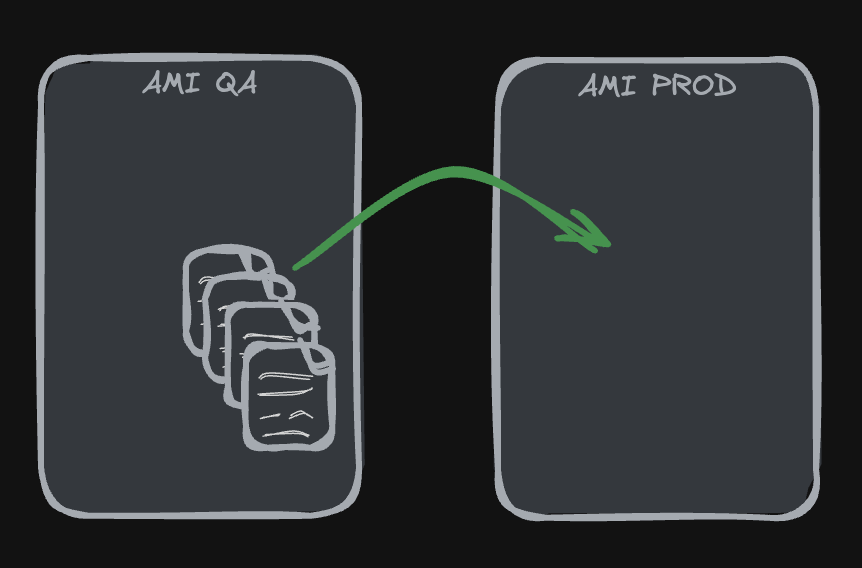
- The layout(s) needed. These could be stored anywhere but are likely in the
data/cloudordata/usersdirectories. - The contents of the
persistdirectory. - From the
datadirectory:managed_schema.amisqlaccess.txt- Any custom styles used from
styles/. - Any custom fonts used from
fonts/
config/local.propertiesif one has been created.- The contents of the
resourcesdirectory. - Updated versions of libraries in the lib/ directory.
If the AMI instances are configured differently you should consult the Managing AMI for Multiple Environments documentation.